
How Leaper works
Export a sheet, edit the cells you care about, import the file, then read the result. Jobs is the home. MCP runs the same jobs without the admin UI.
Working with spreadsheets
Leaper reads and writes Shopify data as CSV, Excel .xlsx, or a ZIP of CSV files. .xls is not supported.
CSV is one sheet per file. Excel can pack several known sheets in one workbook. The Excel tab name is the sheet name, such as Products. A ZIP of CSVs starts one import job per known sheet. Extra tabs named Summary or Notes are ignored.
There are 23 sheets. Payouts and Activities are export only. Companies is the Shopify Plus B2B sheet. Column headers for every sheet are on Columns.
Export Shopify data
Open Export, pick Format and Sheets, click Export. The file is written in the background. Download it from Jobs.
Create an export
- Open Export. The breadcrumb is Jobs.
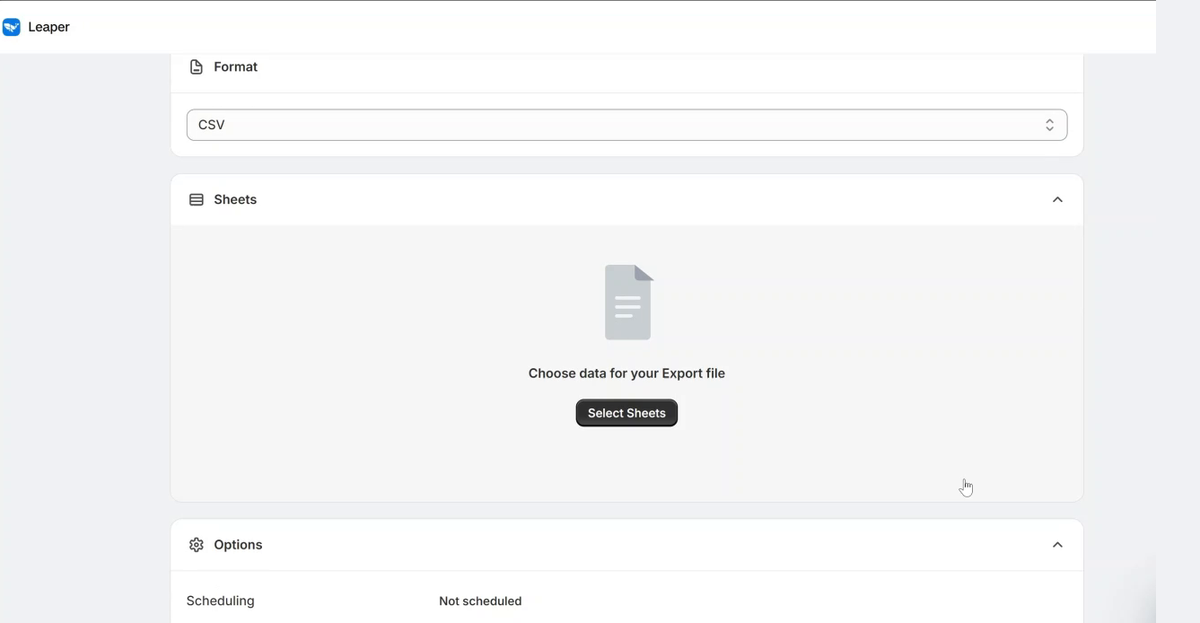
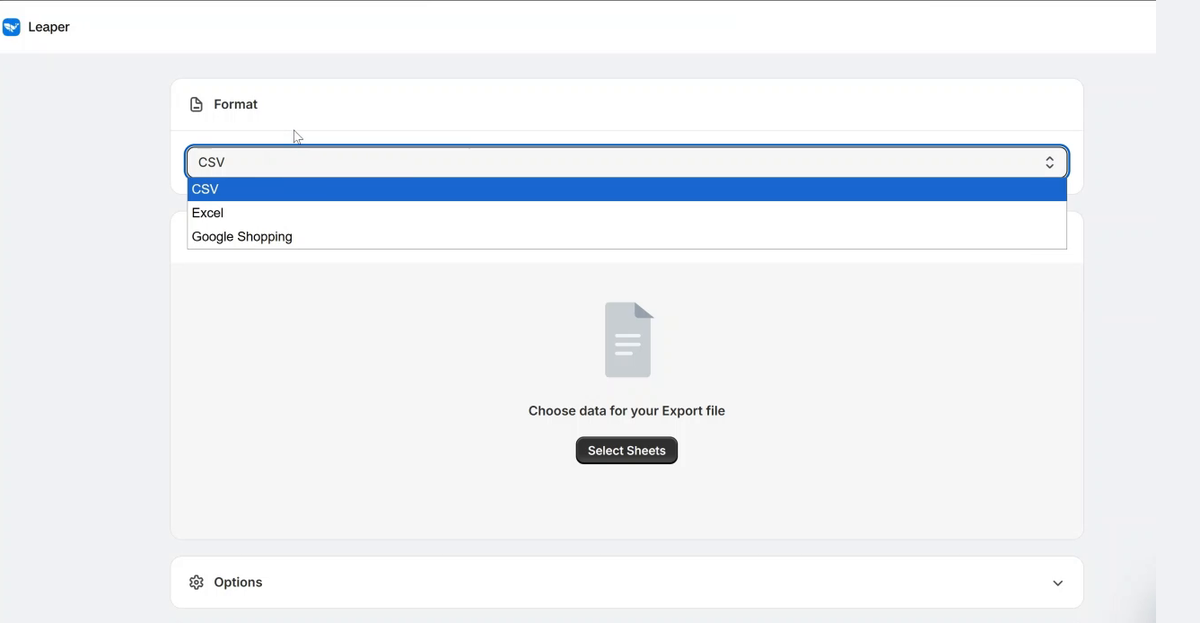
- Set Format to CSV or Excel. Google Shopping is the third choice. It writes a product feed (TSV), not a Products sheet you import back. Google Shopping feed.
- In Sheets, click Select Sheets. CSV takes one sheet. Excel can take several known sheets in one workbook. CSV with more than one sheet selected is blocked until you drop back to one.
- On the sheet row, open Select Columns. Uncheck a group, or remove a header chip. A column you leave out is not in the file. An import of that file will not change that field. Select columns.
- Open Set Filters if you only want rows that match a Shopify search. The Total count on the sheet row stays unfiltered.
- Options includes Results file and Scheduling. Results file tokens are filled in UTC when the job starts: %Y %y %m %d %H %M %S, %{shop_subdomain}, and %{job_id}. Custom filename.
- Click Export. The button shows Starting…, then the job runs on Jobs.
Where the file goes
Download the file from Jobs when the job is Completed. There is no public export URL. Leaper does not write the file back to Google Sheets. Export destination to FTP is not in this product.
While it runs
Export starts a Shopify bulk query and writes the file in the background. You can close the browser. Status and Progress update on Jobs. Download appears when the file is written.
Run it later
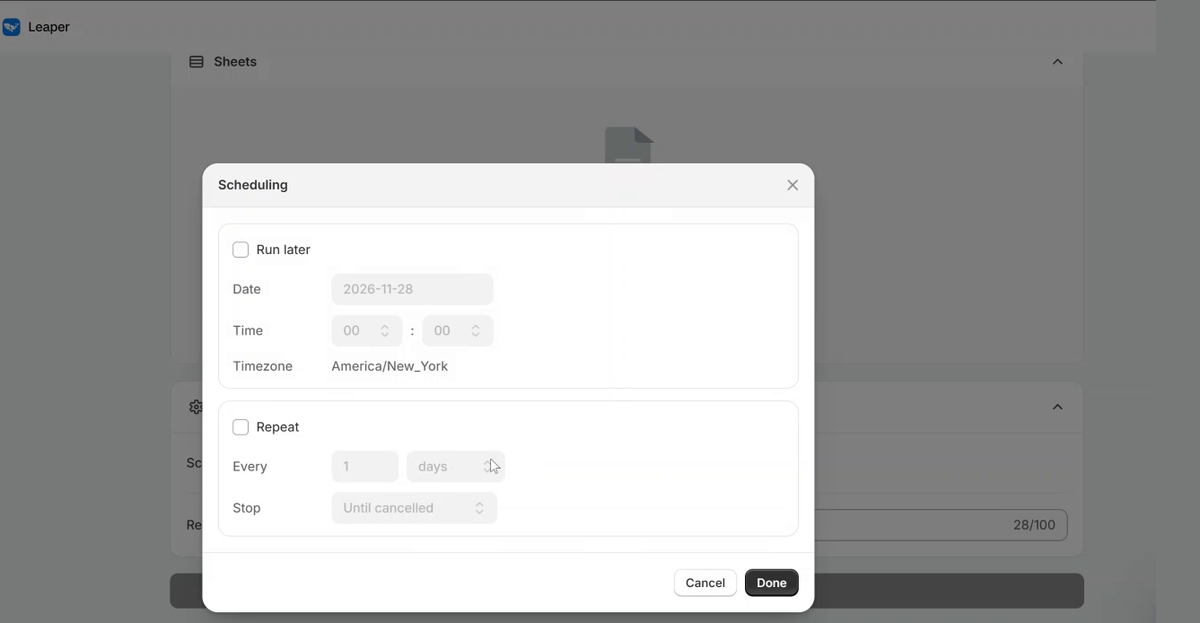
Options, then Scheduling. Run later sets a date and time in the shop timezone. Repeat every N hours, days, or weeks, until cancelled or for a set number of runs. The next run is queued when that job finishes. Import from a URL can use the same scheduler. Full page: Schedule an export or import.
Edit the file
Keep the identifier and the columns you change. An omitted column is left alone in Shopify.
Keep the columns you change
You do not need every column. Identity plus the field you are changing is enough. Empty Command is MERGE on most sheets. Empty-cell rules differ by field and stay on Columns and Minimum columns. They are not restated here as guesses.
Match
The file decides. Order is ID, then Handle, then Title. If those columns are missing, Variant ID, Variant SKU, or Variant Barcode is used. Products can also Match by Variant SKU on Import. Put [ID] after Variant SKU to force SKU matching even when Handle is present. Duplicate titles or SKUs fail instead of updating the wrong product. How Leaper matches Shopify products.
Command
Empty Command is MERGE on Products, Orders, and most other sheets. Draft Orders is the exception: empty Command is NEW.
| Command | What an import does |
|---|---|
| (empty) / MERGE | Update the record Leaper can match, or create it when there is no match. |
| NEW | Create only. Skip (or fail) if the row already exists. |
| UPDATE | Update only. Fail if there is no match. |
| REPLACE | Analysis warns ALYS012 and does not block. Product REPLACE is rejected on write. |
| DELETE | Remove the record. Analysis warns ALYS011 and does not block. Orders: Command DELETE fails with Deleting orders is not supported. |
| IGNORE | Skip the row. |
What people do
Task pages with a worked file, a dry-run figure, and what fails:
Files from other systems
Leaper does not log in to WooCommerce, Magento, BigCommerce, Wix, Squarespace, WordPress, or the rest. Export CSV or Excel there and import. If the file looks like one of those catalogs, Leaper rewrites the headers onto Shopify columns and turns on Dry run and Ignore ID. Hub: Move a catalog into Shopify.
Import to Shopify
Choose a file, drop it, or paste a URL. Analysis runs, then Ready to import is where you map columns, dry-run, and click Import.
Choose a file
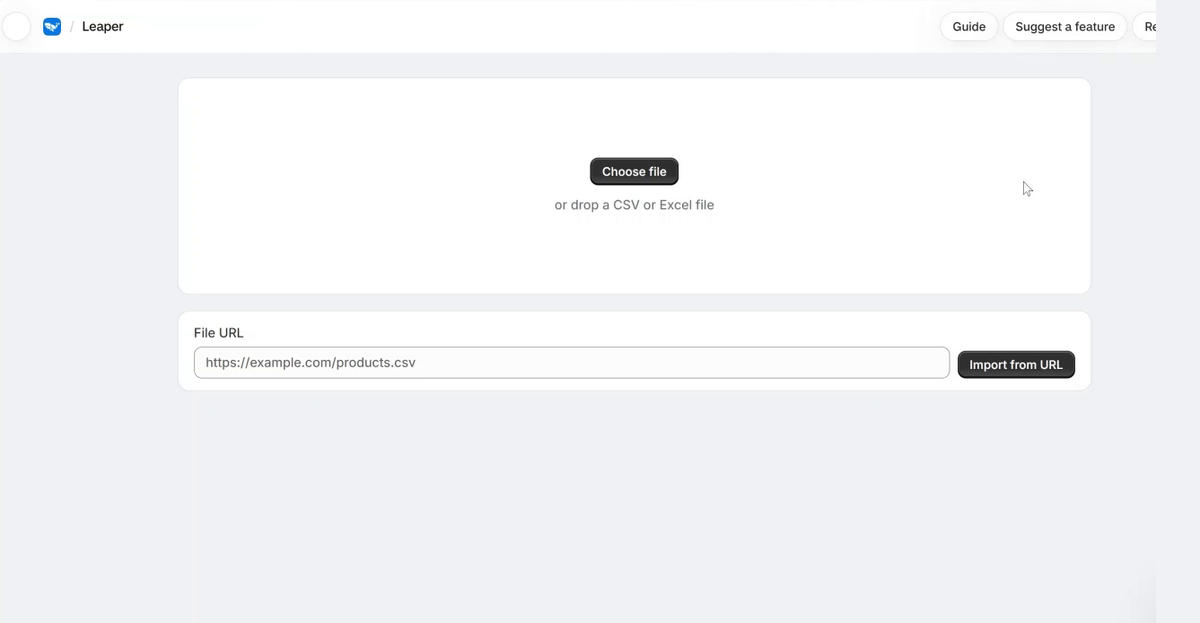
Open Import. Choose file, drop a CSV or Excel file on the well, or paste a File URL and click Import from URL. CSV, Excel .xlsx, and a ZIP of CSV files are accepted. Files can be up to 20 GB. A browser upload is practical around 5 GB.
File URL accepts an https file, a Google Drive or Sheets share link (anyone with the link; Leaper fetches a snapshot and does not write back), Dropbox, SharePoint, or OneDrive. HTTP Basic in an https URL is used once and not stored. Import from a URL. Google Sheets.
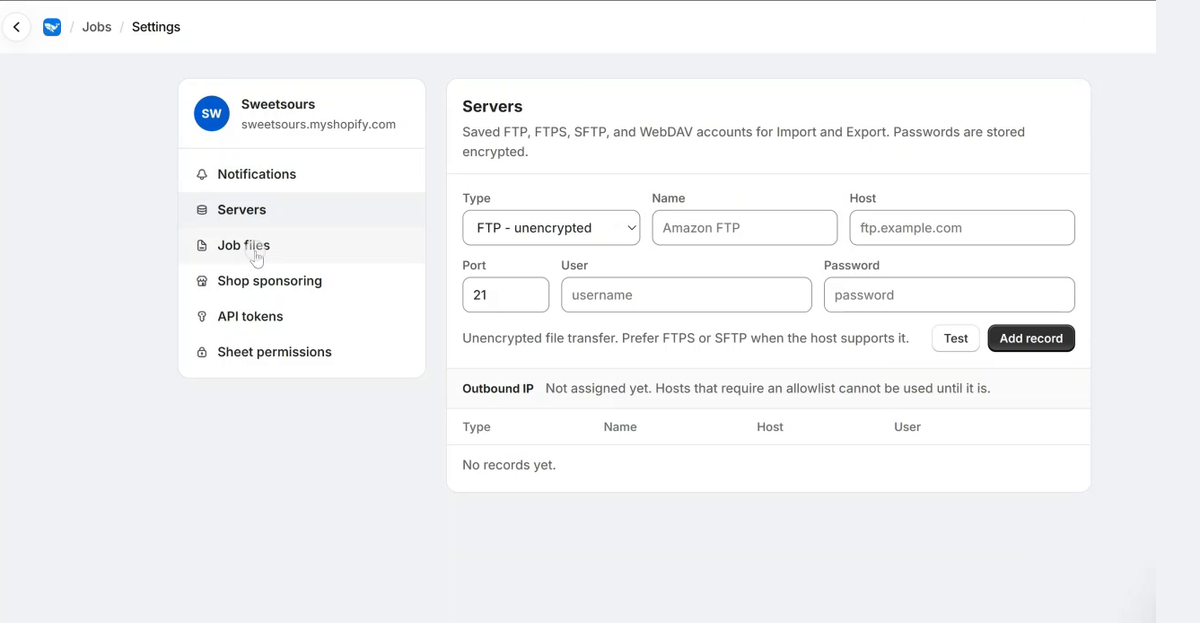
FTP, FTPS, SFTP, and WebDAV use a saved server in Settings, then a remote path. That is not the File URL box. Import from FTP.
Analysis and options
The overlay shows Uploading file, then Analyzing file. You can leave. The job is on Jobs. When analysis finishes, the composer is Ready to import: File, Sheets, Columns, Options, then Import.
If more than one sheet in the workbook or ZIP could match, pick the entity on the Sheets row. Analysis runs again. Converted catalogs force Dry run and Ignore ID on. Uncheck Dry run to write.
Unmatched columns must be skipped, mapped, or dry-run before a write. Duplicate targets are blocked.
| Option | Default | What it does |
|---|---|---|
| Dry run | Off | Lookups and a result file. Nothing is written. Converted catalogs force this on. |
| Ignore ID | Off | Skip the ID column. Converted catalogs force this on. |
| Generate redirects | On | Creates /products/old to /products/new when a product handle changes. |
| Match files by filename | Off | Reuse a Files library file whose filename matches Image Src. |
| Delete blank metafields | Off | Empty metafield cells are skipped unless this is on. |
| Transliterate handles | Off | Fold non-ASCII handles before match and create. |
| Match by | ID, then Handle, then Title | Products only. Variant SKU is the other choice. |
| Results file | A default name | The download name. Same UTC tokens as export. |
Read the results
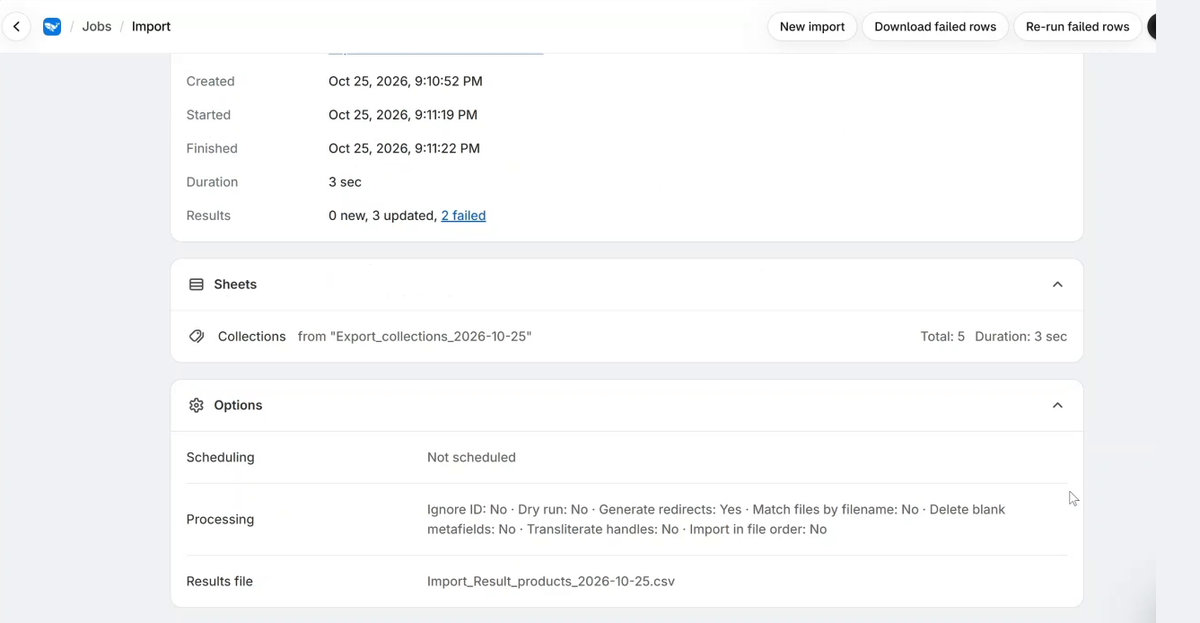
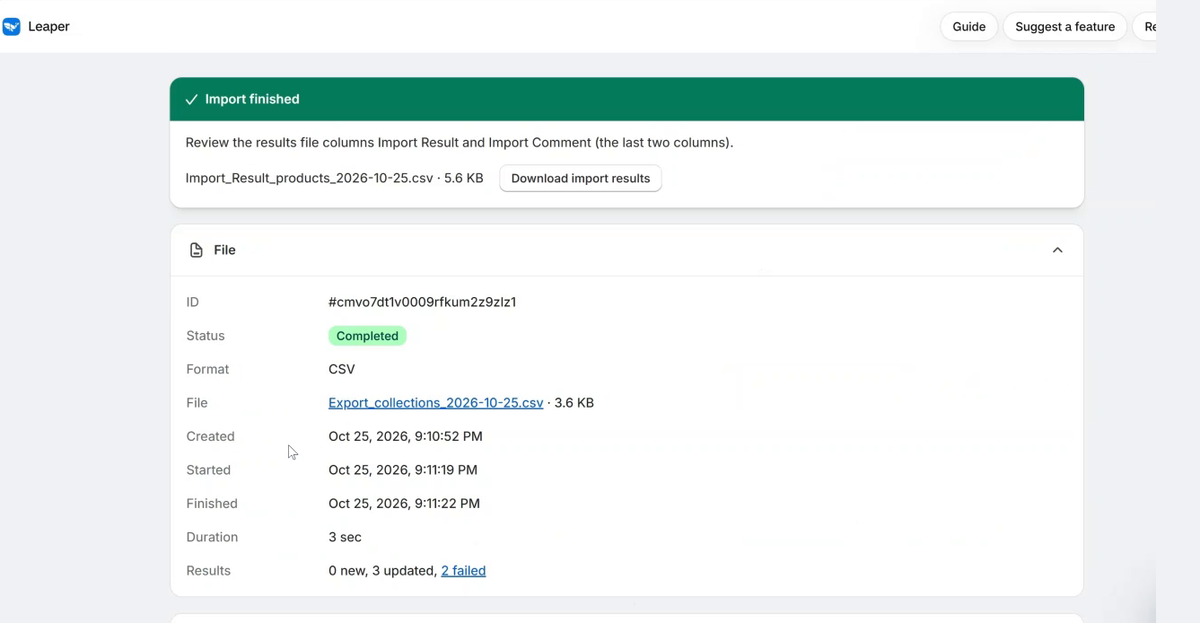
When the import finishes, download the result file. Every row has Import Result and Import Comment.
Statuses
Dry run runs lookups and builds the write payload, then writes Would create, Would update, or Would delete in Import Comment. Nothing is written to Shopify. Shopify userErrors only appear on a real import.
- OK means the row saved, or would save on a dry run.
- Warning means the row saved but something was skipped, such as a metafield or a missing collection.
- Skipped is IGNORE, or NEW when the row already exists.
- Failed means that row did not save.
The result file
The result file adds ID (Ref), a second ref column for that sheet (Handle, Filename, Code, or Name), Variant ID (Ref) on product rows, Import Result, and Import Comment. Import Comment starts with a code then English, for example IMP001 Product already exists.
Download failed rows and Re-run failed rows appear when there are Failed or Warning rows. A failed-row download includes Failed and Warning. It omits OK, Skipped, and Cancelled. Re-run failed rows starts a new import from that file and keeps Ignore ID, Match by, sheet, column map, dry run, and the other processing options.
Jobs
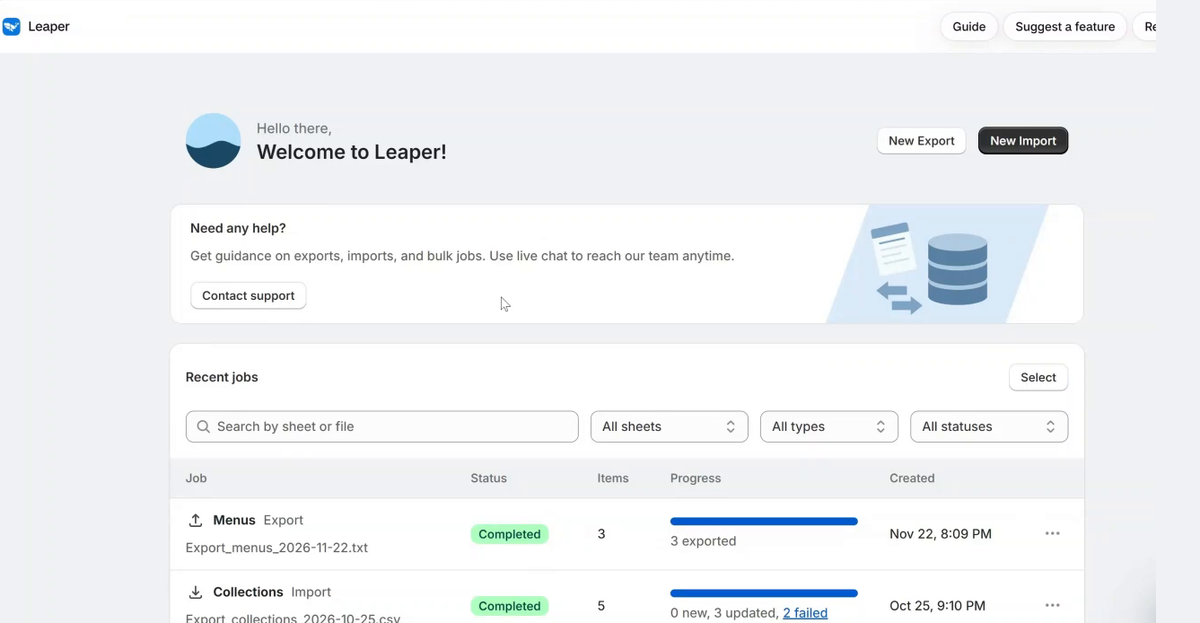
Jobs is the first screen in Leaper. Recent jobs lists export and import jobs, including Ready to import.
Search by sheet or file. Filter by sheet, Import or Export, and status (Ready, Scheduled, Running, Completed, Failed, Cancelled). Uploading, analyzing, and running jobs refresh every few seconds.
Two imports and two exports can run at the same time. A third job of the same kind waits. Files up to 20 GB. Finished job files are removed after the number of days in Settings. The default is 30. Set 0 to keep them until you delete the job.
Cancel is available on a ready, uploading, analyzing, or running import, and on a running export. Delete files removes the stored file and keeps the job row. Full page: Jobs and file limits.
Run Leaper without the admin UI
MCP runs the same export and import jobs as the app. A job you start from Cursor or Claude shows up on Jobs. There is no CLI product.
Install Leaper from the Shopify App Store first. MCP is not a separate listing. The public npm package is @leaperdata/mcp-server. There is no npx leaper package.
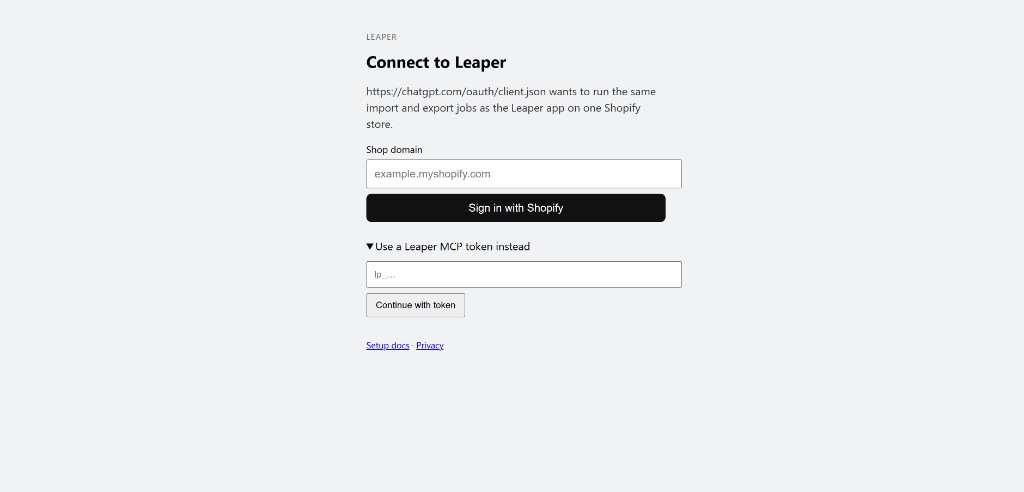
Claude and ChatGPT: add https://mcp.leaperdata.com/mcp as a custom connector and sign in with Shopify.
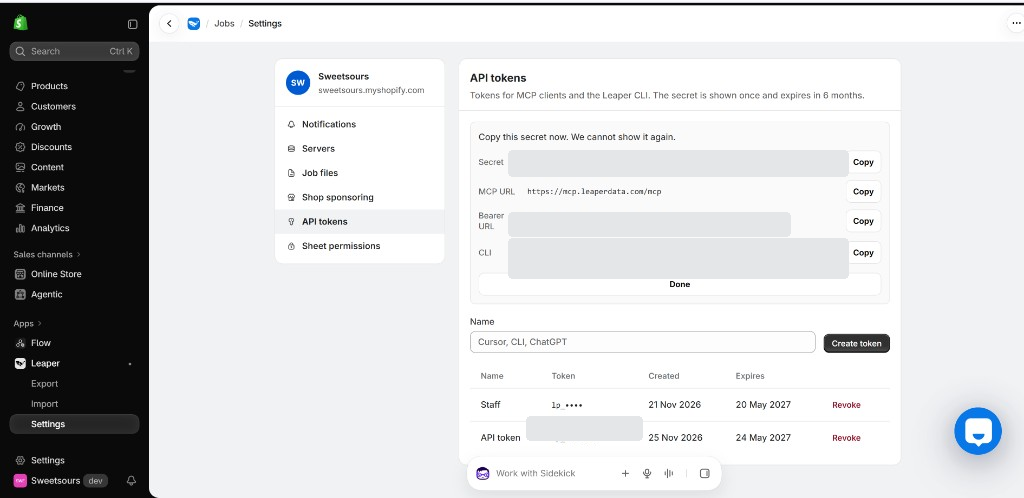
Cursor, VS Code, and Windsurf: create a token in Settings > API tokens (shown once, expires in 6 months, starts with lp_), then run npx @leaperdata/mcp-server with LEAPER_API_KEY set to that secret. Cursor can use the hosted URL with a Bearer token instead of npx.
Live imports require confirm: true after a dry run. leaper_import_start without confirm runs a dry run only. FTP passwords are not accepted on MCP; use a saved server id. Full setup: Connect Cursor, Claude, or ChatGPT to Leaper.
{
  "mcpServers": {
    "leaper": {
      "command": "npx",
      "args": ["-y", "@leaperdata/mcp-server"],
      "env": {
        "LEAPER_API_KEY": "lp_your_token"
      }
    }
  }
}
Settings that exist
Settings is in the app, not on this site. The screens that exist:
- Servers: FTP, FTPS, SFTP, or WebDAV. Host, port, user, password, then a remote path on Import. Settings also shows the outbound IP for FTP allowlists. Export does not upload to FTP.
- Sheet permissions: which sheets staff can export or import. Disabled sheets cannot be exported or imported. Payouts and Activities cannot be imported. The account owner edits this table.
- API tokens: staff secrets for MCP. Shown once, expire in 6 months, revoke from the same table. OAuth sign-ins from Claude or ChatGPT show up there as named tokens.
Getting help
FAQ
- Is this page the same as Docs?
- No. This page is the walkthrough: export, edit, import, results, jobs, MCP. Docs is one page per job and sheet. Column headers stay on Columns.
- Does Leaper write an export to Google Sheets or FTP?
- No. Download the file from Jobs. A Sheets share URL is a fetch on import only. FTP is a saved server for import, not an export destination.
- Can I close the tab while a job runs?
- Yes. Export and import run in the background. Jobs is the home. Download appears when the file is written. Ready to import rows wait there until you start Import.
- Is there a command-line app?
- No. MCP runs the same jobs as the admin UI. Claude and ChatGPT use https://mcp.leaperdata.com/mcp. Cursor, VS Code, and Windsurf use npx @leaperdata/mcp-server with a staff token. MCP.