
Import Shopify data from FTP or SFTP
Save a server under Settings, then pick it on Import. Not File URL. Host, port, user, password, remote path.
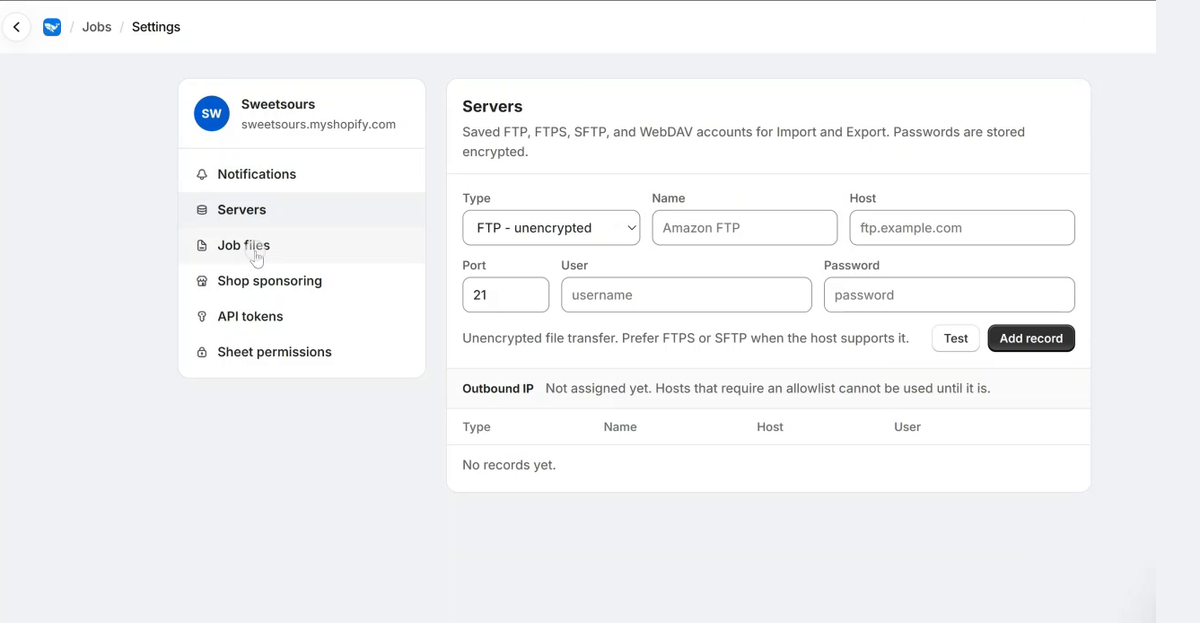
Use this when a warehouse or another system drops a CSV on FTP. You save the server once. Each import picks that server and a remote path. This is not an https File URL.
Save the server
- Open Settings in Leaper.
- Add an FTP server: host, port, username, password, protocol as your server requires.
- Save. The password is stored for later jobs on this shop.
Run the import
- Open Import. Choose the saved FTP server and the remote file path.
- Analyze. Keep Dry run on.
- Read Import Comment. Write when it is right.
What the remote file looks like
What a dry-run comment looks like
What fails
- Wrong port or protocol (FTP vs SFTP).
- A path that moved. The saved server is fine; the file is not there.
- Pasting ftp:// into File URL.
FAQ
- Is this File URL?
- No. FTP servers are saved in Settings. File URL is https only. Import from a URL.
- SFTP?
- Yes, if the saved server is configured for it. Use the host and port your server actually uses.
- Schedule from FTP?
- Schedule can run against a saved server. The file at that path must be replaced in place or the path must stay valid.
- Does Leaper upload to FTP on export?
- Export destination is not in this product. You download from Jobs.