
Schedule a Shopify export or import
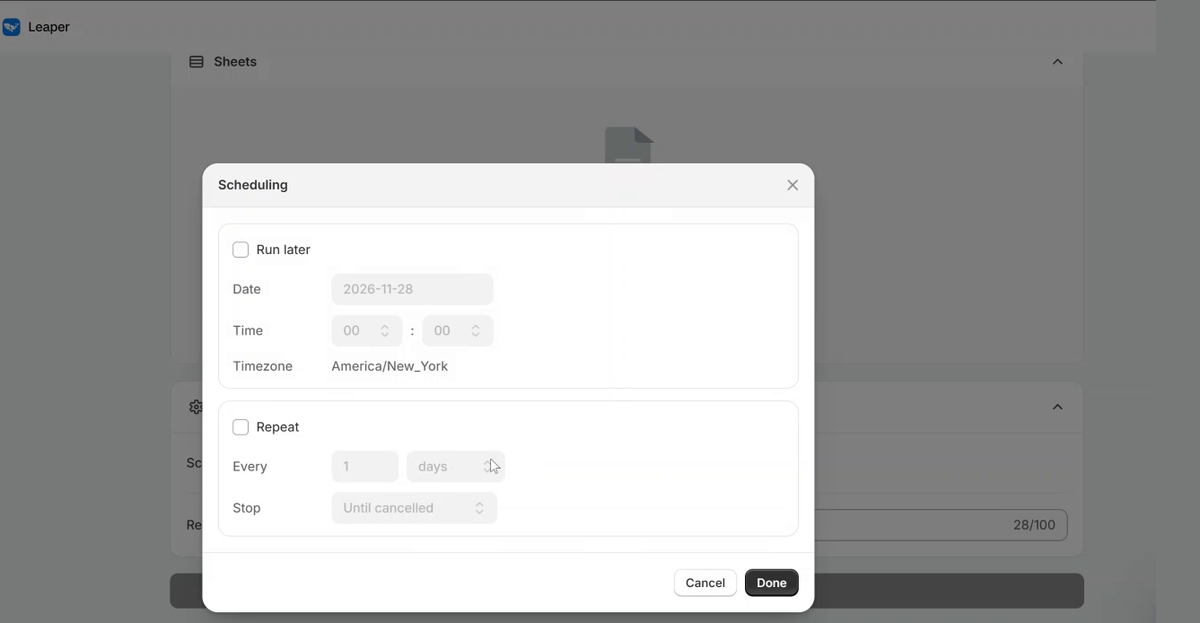
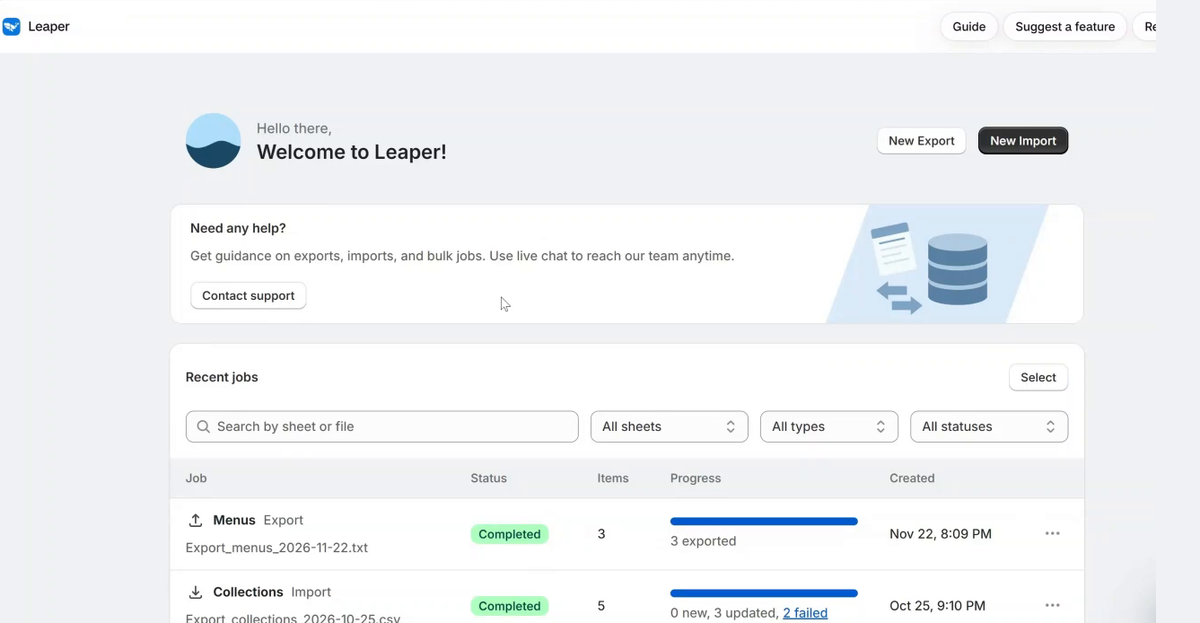
On Export or Import, set a schedule after the job is configured. Jobs lists runs. This is not a public file URL and not a desktop app.
Use this for a repeating export (backup, price list) or a repeating import (FTP drop, Sheets URL). One-off jobs do not need a schedule. Jobs is the history. Backup is the full-shop export pattern.
Steps
- Configure the export or import as usual (sheets, filters, file, Dry run off for a live repeating import).
- Set the schedule (time and repeat).
- Save. The next run appears in Jobs when it fires.
Where runs show up
What a scheduled product export contains
What fails
- A File URL that started working and later 404s.
- FTP path empty on the night the job runs.
- Dry run left on for a repeating import you meant to apply.
FAQ
- Can I schedule an import from a URL?
- Yes, if File URL still fetches. Import from a URL.
- Where do I download a scheduled export?
- Jobs. Open the run, download the file.
- Does the shop need to stay open?
- The schedule runs on Leaper’s servers. You do not leave the admin tab open.
- Export to FTP?
- Not in this product. Import from FTP exists. Export is a download from Jobs.