
Import Shopify data from a file URL
Paste a public https URL into File URL on Import. Leaper fetches it, then the same dry run as an upload. The URL must not need a login.
Use File URL when the file already lives on HTTPS and you do not want to download it to the desktop first. Google Sheets and FTP are separate pages because the steps differ. There is no export-to-public-URL product on this site.
Steps
- Host the CSV or Excel file at an https URL that does not require a login.
- Open Import. Paste the URL into File URL.
- Analyze. Keep Dry run on.
- Read Import Comment. Uncheck Dry run to write.
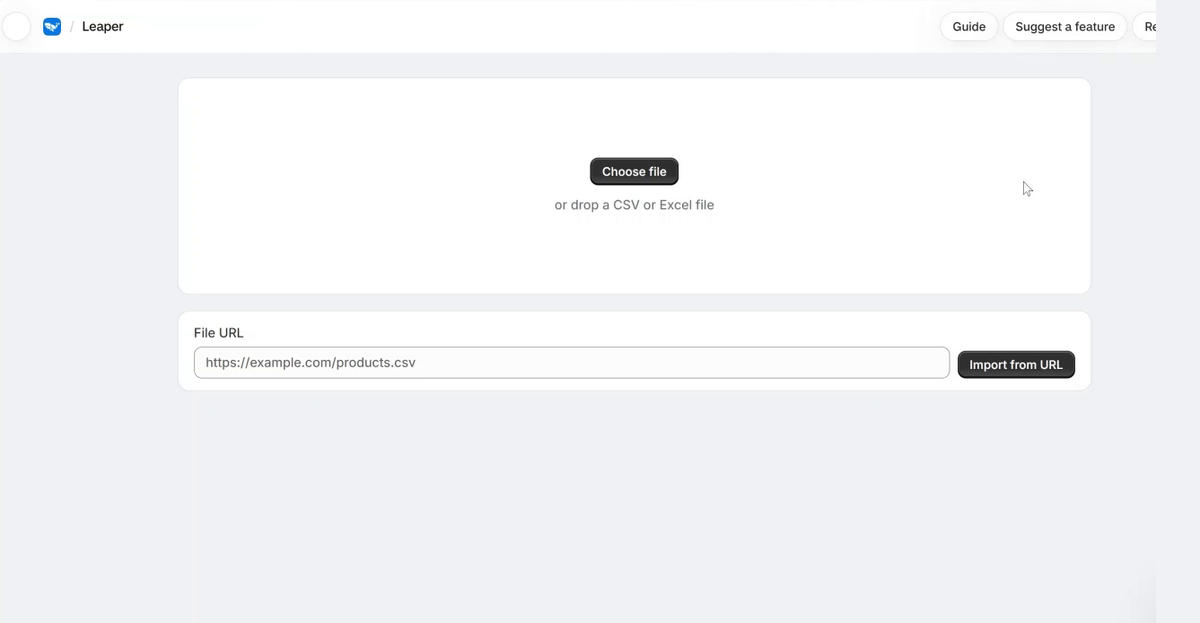
What you paste
A scheduled remote job re-downloads each run. Skip empty remote files is on for schedules. Folder wildcards import matching files one after another.
| Source | What you paste | Own page |
|---|---|---|
| https file | A direct file URL. HTTP Basic in the URL is used once. | This page |
| Google Sheets or Drive | A share link (anyone with the link). | Google Sheets |
| Dropbox | A direct-download share link, not the preview page. | This page |
| SharePoint / OneDrive | A share link. | This page |
| FTP, FTPS, SFTP, WebDAV | Saved server in Settings, or ftp:// / sftp://. | FTP |
What the remote file looks like
What a dry-run comment looks like
What fails
- A preview page (Drive, Dropbox) instead of a direct file.
- http:// when the host redirects or blocks. Use https.
- ftp:// in File URL. Use FTP.
- A signed URL that expires before the job runs.
FAQ
- Google Sheets?
- A Sheets share link is a different fetch. Import from Google Sheets.
- FTP?
- Import from FTP. Saved server, not File URL.
- Does the URL need to stay up?
- Until analysis and the run finish. A one-time signed URL can expire mid-job.
- Login walls?
- The URL must be fetchable without a session cookie. Dropbox and Drive need a direct-download link, not the preview page.