
Export Shopify products to Excel
Products sheet: one row per variant. Filters, column picker, schedule, then download. Excel, CSV, or a ZIP of CSVs.
Use this when you need a working file: prices, inventory, tags, SEO, or a backup. Import products is the write path. Select columns if you do not want every header. Schedule if it should repeat.
Steps
- Open Export. Keep Products checked. Uncheck other sheets you do not want.
- Optional: open Filters. Limit by status, vendor, type, or ID.
- Optional: open Columns. Uncheck headers you will not edit.
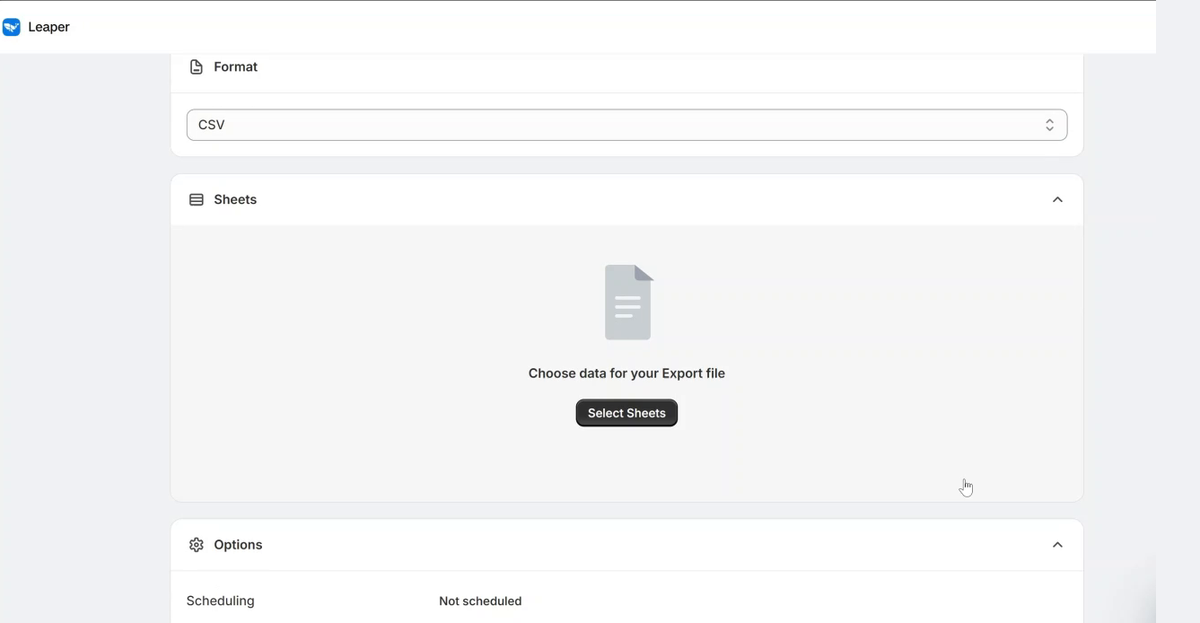
- Format: Excel, CSV, or Google Sheets. Excel is the usual pick.
- Run export. Download from the result, or from Jobs.
What the file looks like
What fails
- A filter that matches nothing still finishes. The file has headers and no data rows.
- Column picker with no columns selected is not a valid export.
- Google Sheets format is a download of a spreadsheet file, not a live write-back to a Google account.
FAQ
- One row or several per product?
- One row per variant. Repeat Handle. Product fields are filled on every row of that group.
- Can I drop columns?
- Yes. Export with chosen columns.
- Excel or CSV?
- Both. Excel .xlsx keeps several sheets. CSV is one sheet. A ZIP of CSVs if you asked for more than one sheet.
- Can I schedule it?
- Yes. Schedule an export.
- Does this include Google Shopping columns?
- The Products sheet has the Google columns. Export for Google Shopping.