
Import a Shopify CSV into Leaper
Admin product CSV (often products_export). Leaper maps Handle, Body (HTML), Variant SKU, Google Shopping columns. Dry run first. Comparison lives on Shopify CSV vs Leaper.
Use this when the file is a Shopify admin product CSV (filename often products_export). Shopify CSV vs Leaper is the comparison. This page is the import steps.
What the converter maps
Detection looks at Handle plus Variant SKU / Option1 Name, or a products_export filename. A Command column means it is already a Leaper file; the admin converter does not run.
| Admin CSV header | Leaper header |
|---|---|
| Handle | Handle |
| Title | Title |
| Body (HTML) | Body HTML |
| Variant SKU | Variant SKU |
| Variant Price | Variant Price |
| Variant Inventory Qty | Variant Inventory Qty |
| Google Shopping / Gender | Google Shopping / Gender |
| Status | Status (Active if missing) |
Steps
- In Shopify admin, export products as CSV.
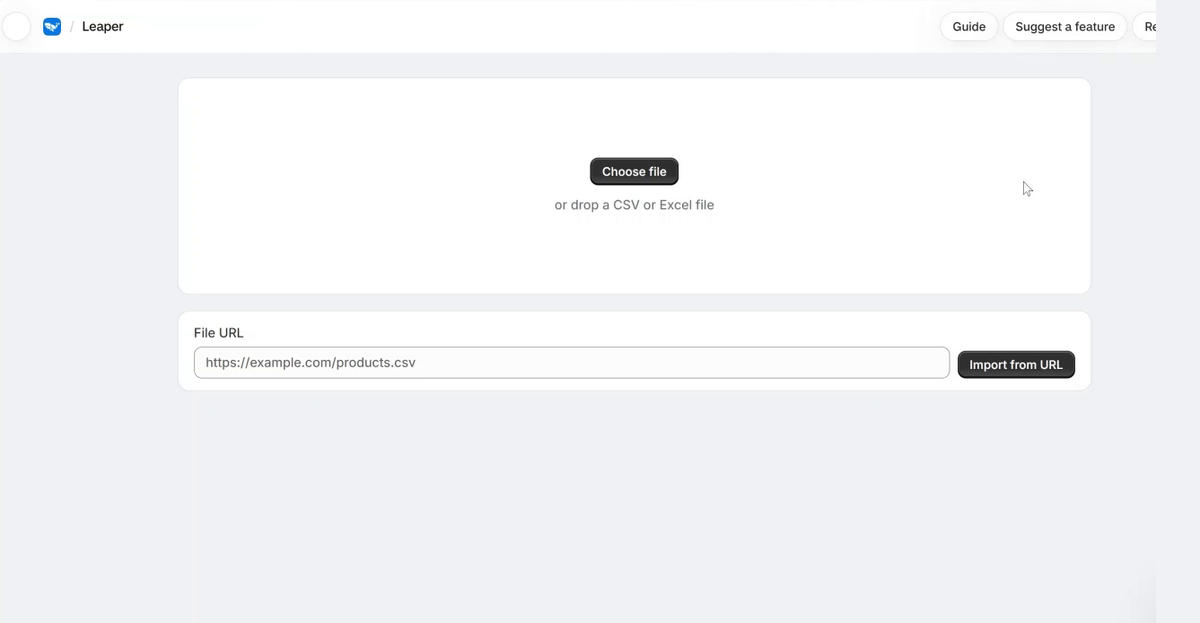
- Open Leaper Import. Choose that CSV.
- Wait for analysis. Keep Dry run on.
- Read Import Comment. Uncheck Dry run to write.
What a dry-run comment looks like
What fails
- Importing the Google Shopping TSV feed as products. That is a different format. Google Shopping.
- .xls.
FAQ
- Excel from admin?
- Admin product export is CSV. Import that CSV, or save as .xlsx. Shopify CSV vs Leaper.
- 15 MB admin limit?
- That limit is admin import. Leaper accepts larger files. A browser upload is practical around 5 GB.
- Will it update existing products?
- Yes, when Handle matches. Empty Command is MERGE.